 Seawall
How to Block Porn on Android in 2026: Four Methods Compared
There is no single switch on Android that blocks porn everywhere. Each method covers a different layer, and each has a hole. Here are the four that matter in 2026, from weakest to strongest, and how to combine them.
1. Google SafeSearch
SafeSearch filters explicit images, videos and sites out of Google Search results. Turn it on in the Google app or at google.com/safesearch and choose Filter. It is worth doing because most detours start with a search. But it only touches Google results: it does nothing for a typed address, a link in a chat or another search engine, and it can be turned back off in two taps.
2. A family DNS filter (Private DNS)
Android 9 and later let you set a Private DNS hostname for the whole phone. Point it at a resolver that refuses adult domains, such as Cloudflare's family service at family.cloudflare-dns.com, and known porn sites stop resolving in every app and browser. Setup: Settings, Network & internet, Private DNS, enter the hostname. Free and light.
Limits: it lives in Settings, so it can be switched off in ten seconds. It has no schedule and cannot block apps. It matches domains only, not keywords. And a browser with its own encrypted DNS setting, or a VPN, goes straight around it.
3. VPN-based blocker apps
Many blocker apps work by running a local VPN on the phone and inspecting every connection. That gives them wide coverage, but it means the app sees every domain you visit and needs the internet permission. Some route your traffic through their servers. Android also allows only one VPN at a time, so you choose between the filter and a real VPN, and the always-on tunnel costs battery. If you use one, read its privacy policy closely.
4. An on-device blocker with no internet permission
Seawall takes a different route. It uses Android's Accessibility service to see which app is in front and which address is in the browser's bar, and shows a block screen when something on your list appears. It ships with a built-in adult-site and keyword list, blocks any app or website by schedule, and is built without the INTERNET permission, so nothing it sees can leave the phone. You can verify that yourself under Settings, Apps, Seawall, Permissions.
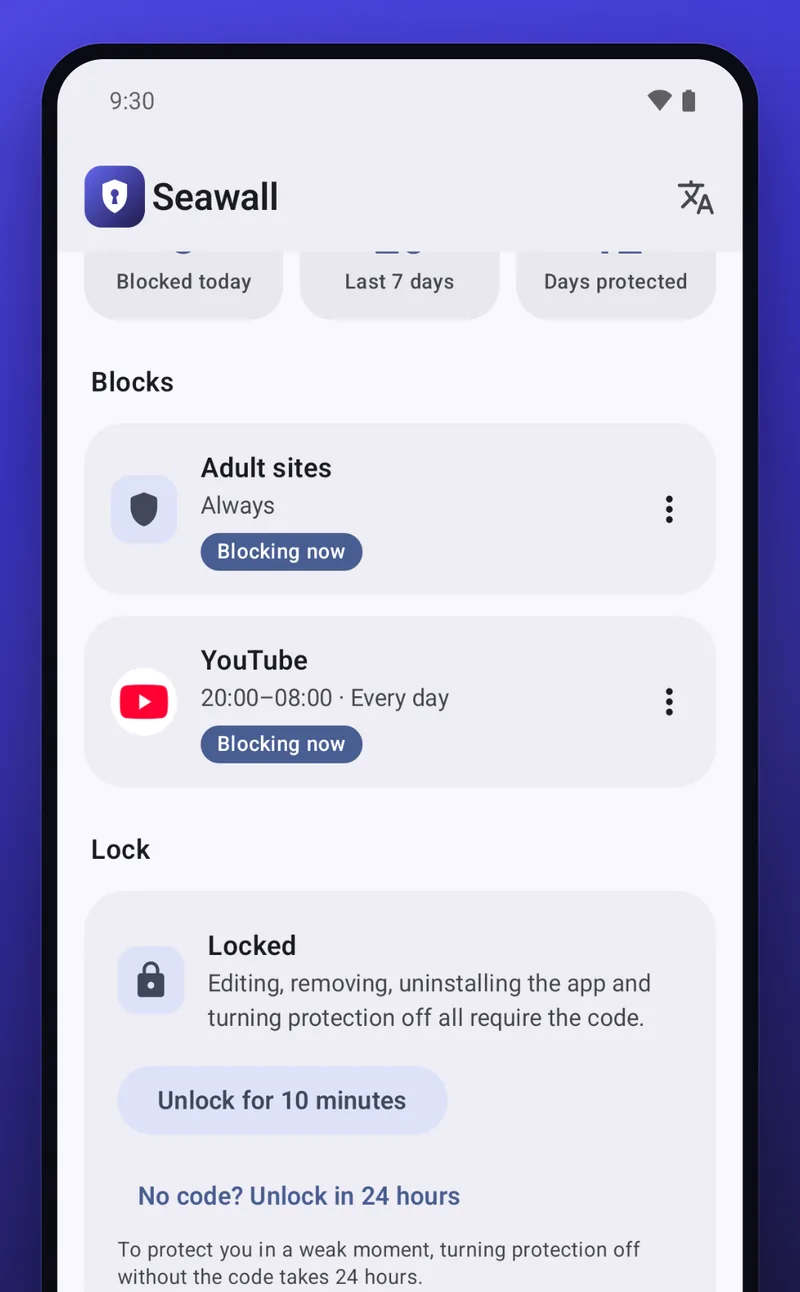
The part that makes it stick is the lock. A friend types a PIN you never learn. While locked, blocks cannot be removed, the app cannot be uninstalled or force-stopped from Settings, and the Accessibility toggle is guarded. If you ever truly need out, a 24-hour delayed release exists, and the wait outlasts any urge.
Honest limit: someone with a computer and Android's developer tools can uninstall any app. If that is you, keep the computer out of the bedroom or hand its password to the same friend.
Setting up Seawall, about two minutes
- Install Seawall from Google Play.
- Open it and turn on the Accessibility service when asked. The app explains exactly what it reads and why.
- Turn on Adult sites. Add your own sites or words if you have some.
- Add any app you lose evenings to, with the hours and days it should be off.
- Set a PIN and let a friend type it while you look away.
What to combine
SafeSearch plus a family DNS plus Seawall covers search, network and screen, and none of the three can see the others' data. The DNS catches a new domain that sneaks past the list, Seawall catches keywords, apps and the moment itself, and the PIN makes the whole stack hard to undo at one in the morning. Seawall does not use the VPN slot or touch your DNS, so the layers never conflict.