 Seawall
How to Block Porn on iPhone with Screen Time (and Close the Loopholes)
iPhone ships with a real adult-content filter. It is part of Screen Time, it works in Safari and in most other browsers, and it costs nothing. The catch is that Apple built it for parents, so used on your own phone it has two loopholes. Here is the full setup, then the fixes.
Turn on the adult-website filter
- Open Settings and tap Screen Time. Turn it on if it is off.
- Tap Content & Privacy Restrictions and switch it on.
- Tap Content Restrictions. On newer iOS versions the row is called App Store, Media, Web & Games.
- Tap Web Content and choose Limit Adult Websites.
- Under Never Allow, add any sites the filter might miss. Under Always Allow, remove anything you do not need.
From this point Safari refuses adult sites and Private Browsing is switched off automatically. Third-party browsers that honour Apple's web filter behave the same way.
Lock it with a passcode
Back in Screen Time, tap Lock Screen Time Settings (older versions say Use Screen Time Passcode) and set a four-digit code. This is the step most guides get wrong: if you know the code, the filter is one bad night away from off. Let a friend, partner or mentor type it while you look away.
Loophole one: the passcode reset
When you set a Screen Time passcode, iOS offers to link an Apple Account for recovery. Anyone who knows that account, which is you, can tap Forgot Passcode and reset it. You can skip the recovery step, but then a forgotten code means erasing the phone to remove it. Decide with your partner which risk you prefer, and if you keep recovery on, let the partner hold the Apple Account password too.
Loophole two: deleting and reinstalling
Restrictions live in the phone, but any app can be deleted, and with it any blocker. Under Content & Privacy Restrictions, find Deleting Apps (inside iTunes & App Store Purchases on older versions, App Installations & Purchases on newer ones) and choose Don't Allow. Now removing any app needs the passcode.
Block apps, not just sites
Screen Time also has App Limits and Downtime. App Limits give an app a daily budget, and Downtime blocks chosen apps during one window, both behind the same passcode. They work, but every limit shows a large Ignore Limit button, and Downtime is a single schedule for everything.
Where Seawall fits
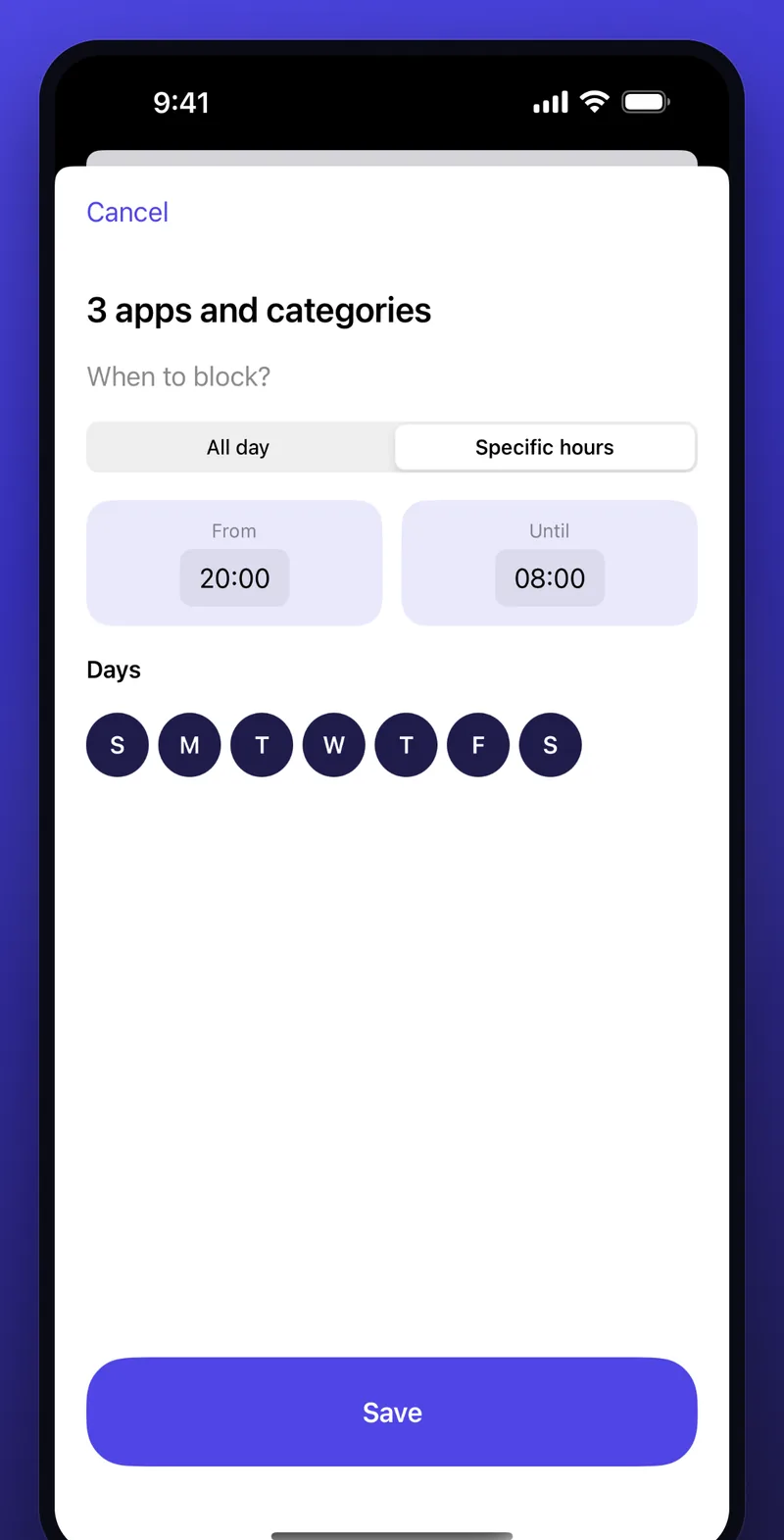
Seawall is a free app that builds on the same Screen Time framework, Family Controls, with the behaviour a self-control tool needs:
- Block any app, category or website on its own schedule: Instagram 20:00 to 08:00, games on weeknights.
- Site blocks also turn on Apple's adult-content filter in every browser, so step one above happens automatically.
- The PIN is Seawall's own. There is no Apple Account reset. Without the code, turning protection off takes 24 hours, and you can cancel the request at any time.
- No internet access, no account, no ads. Apple applies the shields on the device and Seawall never sees which apps you open.
- When a block fires you get a breathing screen and a 15-minute countdown instead of an Ignore button.
Honest limit: like any iOS app, Seawall can be deleted from the Home Screen unless Deleting Apps is set to Don't Allow, so do loophole two first.
The two-minute checklist
- Screen Time on, Limit Adult Websites on.
- Deleting Apps: Don't Allow.
- Screen Time passcode typed by a friend.
- Install Seawall, allow Screen Time access, add your app schedules.
- Seawall PIN typed by the same friend.
Your phone now blocks adult sites in every browser, holds your app schedules, and cannot be quietly undone by the version of you that shows up at midnight.